 Just as with my earlier post on installing Ice-cream Sandwich on your GS2, the risks here are all yours. The chances of anything going wrong are small – but if they do go wrong, the possible consequences are large (you could, for example, kill your phone). Having said that, if you want to try CyanogenMod out, here’s the idiots’ guide.
In my experience, CM9 is faster and smoother than stock ROM’s. I find I get better battery life. It looks far more attractive (to my tastes), and now that themes are integrated, you’ll increasingly be able to customise the look to your preferences. It’s completely stable for daily use. A few things aren’t (fully) working yet: FM Radio (which will most likely never be integrated – but Spirit Radio works fine); TV-out (working, but imperfectly); Wi-Fi direct (coming soon); and auto-brightness (works, but slightly laggy). For a snapshot idea of what’s possible (and upcoming) with “pure” Google ROM’s like CM9, check this out.
This guide deals with only CyanogenMod 9 (currently Android version 4.04) and the Samsung Galaxy S2. Many devices are supported by CM9, though, so if you’ve come here looking for CM9 for some other phone, check out the CyanogenMod site. As before, I’m heavily indebted to the work of others here, especially Codeworkx – nothing I say is original.
Yes, you will lose your warranty if you flash CM9. No, Kies or OTA updates to your phone will no longer work. You’ll lose any Samsung-bundled apps, like Polaris Office, Social Hub and so forth. And the procedure does require a factory reset, so you’ll have to reinstall all your apps. Finally, MTN are my service provider – Vodacom users have had issues with SMS’es, and here’s how they fixed them.
But if you ever need to make a warranty claim, you can go and download the latest official firmware for your device from Samfirmware, flash it using my previous guide, and your phone will look “official” again. Except for one thing, namely the yellow triangle on boot, which indicates that it’s been rooted. To get rid of that, buy a jig from eBay for $3 or so.
If you’re on stock Samsung firmware, and haven’t rooted your phone
Download these 4 files
- Odin
- CM9 “Resurrection edition” (search for the most recent one in the first post)
- Google apps
- The latest CM9 nightly
- Now copy the last two files to your phone (SD Card or internal memory)
- install Kies (if you don’t already have it). While you’re in Kies, de-activate the ”Run Samsung KIES automatically when device is connected” option, seeing as you don’t want it to interfere with Odin flashes (the procedure outlined here).
- connect your phone with the USB cable, let the PC recognise it and install drivers (if necessary – if you’ve used Kies before, it won’t be).
- disconnect the phone, and close Kies (important – check the system tray etc. to make sure it’s closed, because it interferes with Odin).
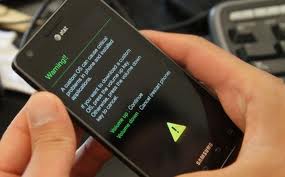
- Put the disconnected phone into ‘Download’ mode, which you do by a) powering down, then restarting by b) holding both volume down and the main button on front of phone in when pressing power. Hold all 3 until you see the screen pictured above. You’ll be asked whether you’re sure you want to go to download mode. You are.
- Launch Odin. Connect the phone with USB cable.
- A block of the Odin screen (ID:COM) should go yellow if everything is in order. If not, something is wrong, probably driver related – but you must not proceed with flashing anything.
- Click on the PDA button and browse to the resurrection edition .tar.md5 you downloaded earlier (251Mb or so)
- Do not select any other options in Odin. And make sure you’ve used the PDA block, not one of the others.
- Click start to flash
- Don’t disconnect the cable or turn off the phone – it will reboot when it finishes.
You’re now running CM9, but won’t have Google apps installed. Let the phone finish booting, and don’t bother setting anything up – you’ll be doing a complete wipe of your phone in a moment. You should already have copied two files to your phone earlier – if you didn’t, copy them across to your SD card or internal memory.
Now, when you press the power button and select “reboot”, you should see the option to reboot into “recovery”. Choose this. Once in recovery mode, do the following:
- Install zip from sdcard (volume up and down moves between options, and power selects an option)
- Either select “choose zip from sdcard” (if you copied those files to your sd card) or “choose zip from internal sdcard” (if you copied them to internal memory)
- Flash the CM9 Nightly build (the 4th file listed for download above)
- Flash the Google apps download
- Wipe data/factory reset
- Wipe cache partition
- Select “Advanced”, then wipe Dalvik cache
- Reboot
There you go – set up your phone, download your apps, etc. To get rid of the yellow triangle on boot, use TriangleAway from the Google Play store. Two other things you might find useful are Syncmypix (for Facebook contact syncing, which is unreliable in ICS generally, but especially in CM9) and an alternative launcher (so that you can put folders in your shortcut bar and so forth). I like Nova, but dig around on the Play store and try a few out.
Note: it’s quite common, on the first boot of CM9, to have no network data. For some reason, your APN settings aren’t read from your SIM card at first. A reboot has always fixed this problem for me – they’re back on the second boot, and then don’t disappear again.
For those who have already rooted.
If you have access to ClockWorkMod recovery (anyone who understands this won’t need further advice in this area, but just in case: reboot into recovery with power, home and volume-up. If you see a Clockwork recovery screen, you do), it’s really easy – just download the last two files linked above, boot into recovery mode and follow steps 1-8 in the list immediately above this.